

|
|
|
| Task Lists | Tasks | Schedule | Dashboard | Account Details | Teams | Configuration | Billing |
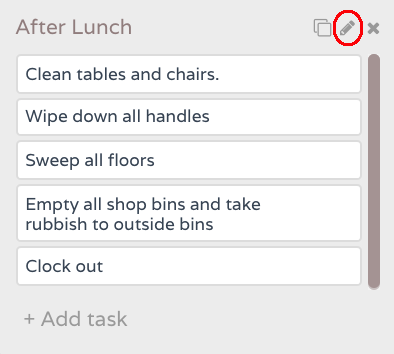
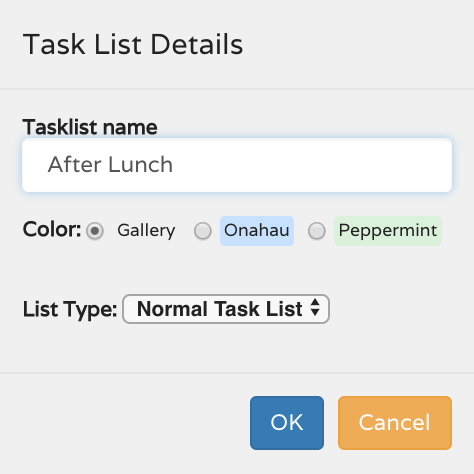
 The driving force of the task scheduling is the Task List. A task list is just a group of several tasks which are grouped together to enable easy scheduling. A task list, for example, might have the same tasks performed daily- such as Opening Tasks. Or it may consist of tasks which are performed just once or twice a week. First, a blank Task List is created; tasks can then be added to that Task List. Individual tasks can have a priority set against them. Task lists can be scheduled by time as well as by day, and may have a duration set for all the tasks in the list. These are accessed by clicking on the Dashboard menu item, then clicking on the graph icon (to show the Live Grid and Performance) or the Trophy icon (to show the leaderboard).
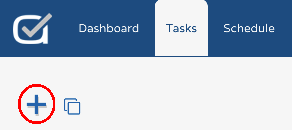 .
.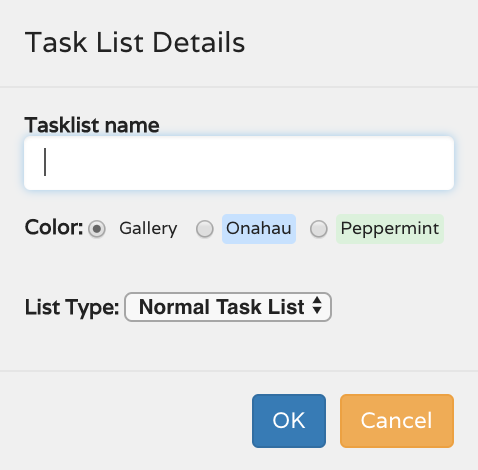 It doesn't matter what order Task Lists are entered; they can be rearranged at any time. Just click and hold the top of any task list, and drag it to a new position.